How to Customize Your Smart Speaker’s Voice Assistant
31 May 2026
Let’s face it—smart speakers are everywhere. Whether it’s Alexa, Google Assistant, or Siri, voice assistants are now a part of our daily routine. From setting timers to telling jokes, they’ve become our digital sidekicks. But have you ever thought, "Hey, I wish this voice sounded a bit more like me," or "It’d be cool if my assistant called me 'Captain' instead of using my actual name"?
Well, you’ve come to the right place. In this guide, we’re diving deep into how to customize your smart speaker’s voice assistant. I’m talking voice changes, accents, wake words, routines, and even personality quirks. Get ready—because your smart speaker is about to feel a whole lot smarter and way more you.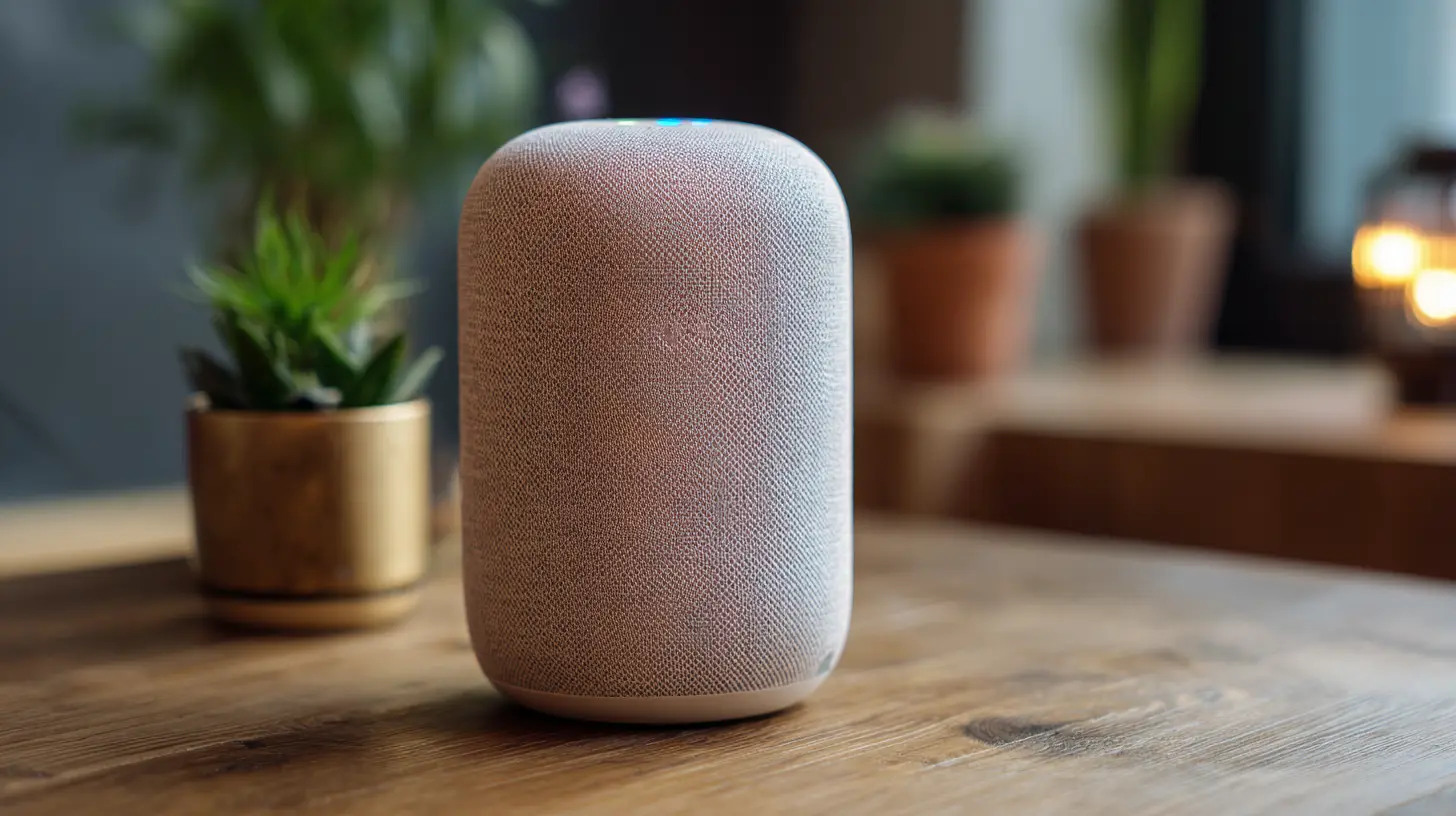
Why Customize in the First Place?
Before we dig into the settings, let’s talk about the “why.” At first thought, customizing a voice assistant might feel a bit extra. But think about it—this is a device you interact with every single day. Why wouldn't you want it to reflect your preferences?Here’s what you gain:
- Personalized experience – Want your assistant to greet you with “Good morning, boss”? Go for it.
- Better accessibility – Choose accents, languages, or speech speeds that work best for you.
- Reduced frustration – Tailor commands so they match how you talk, not how your device thinks you should.
- More enjoyment – Let’s be honest, it’s just more fun.
Step 1: Change the Voice and Accent
Let’s start with the voice itself. Most smart speakers offer multiple voice options—it’s not just that one robotic sound anymore.For Amazon Alexa
1. Open the Alexa app on your smartphone.2. Tap Devices, then choose your Echo device.
3. Scroll to Language or Alexa’s Voice.
4. Choose from available voices—some even have celebrity voices like Samuel L. Jackson (yep, really).
5. Confirm your change and test it out.
You can also ask Alexa directly, “Alexa, change your voice,” and follow the prompts.
For Google Assistant
1. Open the Google Home app.2. Tap your profile pic > Assistant settings > Assistant voice.
3. Swipe through available voices (they’re color-coded rather than named).
4. Tap to preview and choose your favorite.
Google also lets you pick regional accents, like Australian, British, or Indian English.
For Apple Siri (via HomePod)
1. On your iPhone, go to Settings > Siri & Search.2. Tap Siri Voice.
3. Select from Voice 1, Voice 2, etc., and choose the accent you like.
Apple’s voices are some of the most natural-sounding, so don’t be shy about experimenting.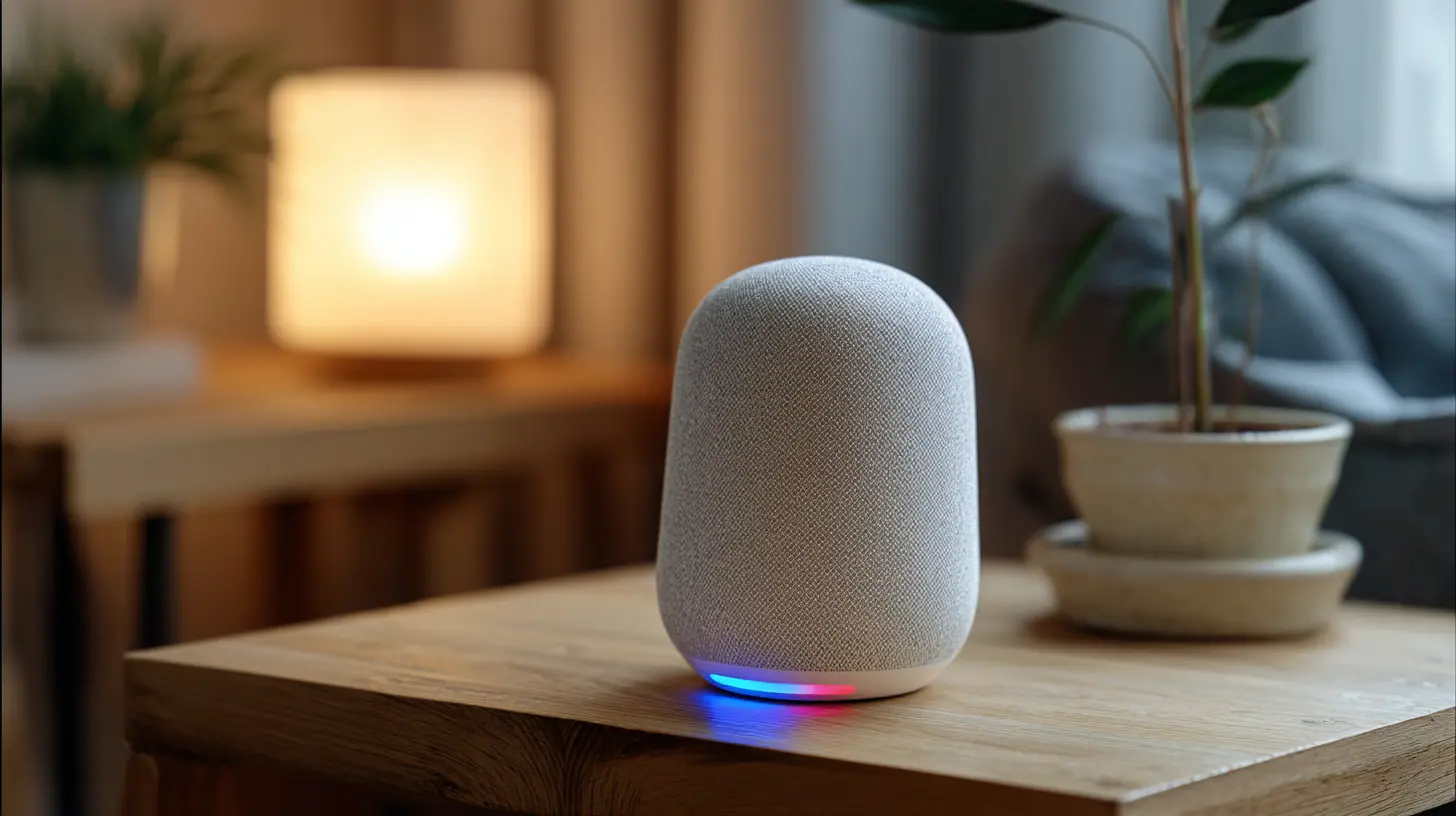
Step 2: Rename or Change the Wake Word
You might not want to say “Alexa” or “Hey Google” every single time. While you can’t name your assistant “Jarvis” just yet (sad, I know), there are a few flexible options.Alexa Wake Words
Alexa gives you a few choices:- Alexa
- Amazon
- Echo
- Computer (hello, Star Trek fans!)
To change it:
1. Open the Alexa app.
2. Tap Devices > Echo & Alexa > choose your speaker.
3. Tap Wake Word and select the one you prefer.
Google Assistant Wake Word
Unfortunately, Google currently limits you to “Hey Google” or “OK Google.” No custom wake words—for now. But hey, it’s a small price to pay for all the cool things it can do.Siri Wake Word
With iOS 17 and newer, Apple now lets you drop the “Hey” and just say “Siri.” It’s not custom, but it’s simpler and faster.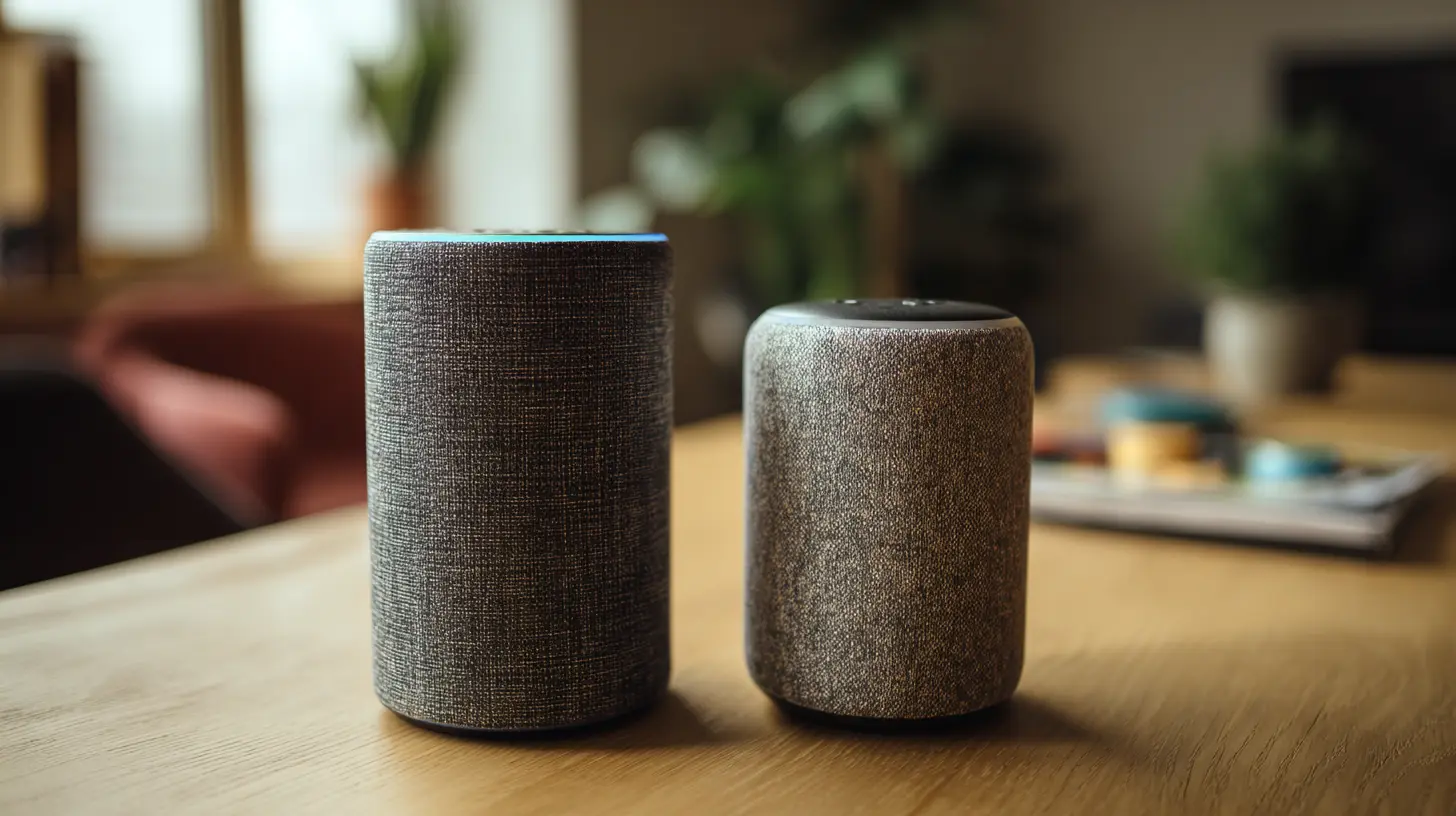
Step 3: Create Custom Routines and Commands
Now we’re getting into the fun stuff—making your assistant do things your way. Routines let you combine multiple actions with a single command.Example Routine Ideas
- “Good Morning” turns on the lights, reads the weather, and starts your favorite playlist.- “Movie Time” dims the lights, lowers the thermostat, and launches Netflix.
- “Time for Bed” locks the doors, turns off the lights, and sets a sleep sound.
Setting Routines on Alexa
1. Open the Alexa app.2. Tap More > Routines > + to create a new one.
3. Set your trigger phrase (like “Let’s work”).
4. Add actions: smart home controls, music, calendar reminders, etc.
Setting Routines on Google Assistant
1. Open the Google Home app > Routines.2. Tap + New.
3. Set your starter command (like “Start workday”).
4. Add actions and adjust settings.
Setting Routines on Siri (Shortcuts)
1. Open the Shortcuts app on iPhone.2. Tap + to create a new shortcut.
3. Add custom actions—from adjusting settings to launching apps.
4. Name your shortcut and add it to Siri.
Now you can just say, “Hey Siri, get me hyped,” and blast your gym playlist.
Step 4: Teach It What You Like (or Don’t)
Your voice assistant is always learning—but did you know you can help it along and speed things up?Customize Responses and Preferences
- Set preferred news sources (NPR, BBC, etc.).- Choose default music apps (Spotify, Apple Music, YouTube Music).
- Link your calendar and to-do apps.
- Teach pronunciation of your name or contacts (super helpful for non-mainstream names).
For example, in Google Assistant you can go to Assistant Settings > You to set these personal preferences. In Alexa, check Settings > Music, News, Traffic, and Calendar.
Step 5: Train Voice Recognition
Most assistants now support multiple users. This means your smart speaker can recognize individual voices and respond accordingly. No more mixing up playlists or giving reminders to the wrong person.Set Up Voice Match (Google)
1. Open Google Home app > Tap your profile > Assistant settings.2. Tap Voice Match > Add your voice.
3. Follow prompts to train it.
Set Up Voice Profiles (Alexa)
1. Open the Alexa app > More > Settings > Your Profile.2. Tap Voice > Record your voice.
Once trained, your assistant can tailor answers based on who's speaking.
Step 6: Add Some Personality
Now let’s spice things up. You can add games, jokes, trivia, and even change how your assistant interacts with you.Fun Customizations
- Tell Alexa or Google to “Roast me” or “Tell me something weird.”- Enable Easter eggs (Alexa has hundreds—like asking “Are you Skynet?”).
- Add Skills (Alexa) or Actions (Google) for extra features.
Want your assistant to sound like a celebrity? Amazon occasionally offers limited-edition voices like Shaquille O’Neal or Melissa McCarthy.
Step 7: Customize Accessibility Features
Smart speakers can also assist users with vision, hearing, or mobility challenges.Voice Speed & Volume
Both Alexa and Google Assistant allow you to slow down the speech rate. Just say:- “Alexa, speak slower.”
- “Hey Google, talk faster.”
You can also adjust the default volume or set routines that automatically lower volume at night.
Visual Responses
Pair your smart speaker with a screen (like Echo Show or Nest Hub) to see responses, captions, and more.Touch Features & Haptic Feedback
Some devices offer controls via touch, especially helpful for those who prefer non-verbal interaction.Pro Tips to Level Up
- Use If This Then That (IFTTT) – It connects your smart speaker with hundreds of other services.- Name timers and reminders – Instead of "Set a timer," try “Set a pizza timer for 12 minutes.”
- Create nicknames – Have your assistant call you “Your Majesty” or “Bossman.” Why not?
Things to Keep in Mind
Customizing is awesome, but there are a few limitations:- No fully custom wake words (yet).
- Some features vary by country.
- Not all accents or voices are available on every model.
- Some celebrity voices or skills may cost extra.
Still, the level of control you get is pretty impressive.
Final Thoughts
Customizing your smart speaker’s voice assistant isn’t just about fun—it’s about making technology work for you. It’s like giving your digital assistant a little piece of your personality. Whether you want it to call you “Commander” or just prefer a soothing British accent over the standard voice, it’s all doable.So don’t settle for default. Dive into those settings, have a bit of fun, and truly make your smart speaker yours.
all images in this post were generated using AI tools
Category:
Smart SpeakersAuthor:

Marcus Gray
Discussion
rate this article
1 comments
Sonya Williams
In the realm of circuits and sound, Your voice assistant waits, ready and profound. Change its tone, let it align, With your spirit, let its words shine. A touch here, a tweak there, Make it yours, with love and care. In your space, let its magic flow freely.
June 17, 2026 at 2:40 AM